How-to-Editor
Introduction
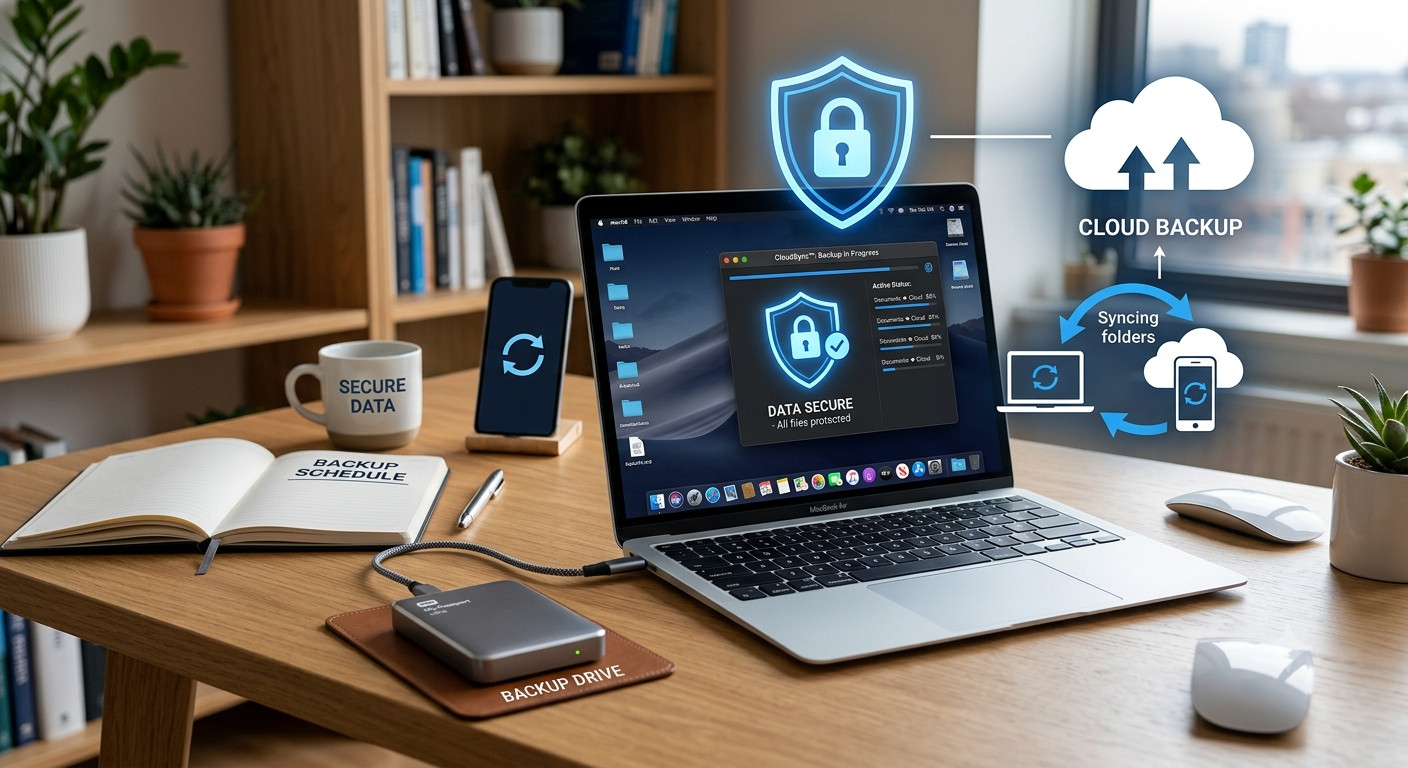
Imagine turning on your computer one morning only to find that your family photos, work documents, and important files have disappeared. Whether it’s caused by hardware failure, accidental deletion, ransomware, or theft, data loss can happen when you least expect it. That’s why learning how to Backup Your Computer is one of the smartest things you can do.
The good news is that creating reliable backups isn’t complicated or expensive. Modern backup solutions make it easy to protect your files automatically, giving you peace of mind even if your computer fails.
In this guide, you’ll learn why backups matter, the different types of backups, the best backup methods, step-by-step instructions, practical tips, common mistakes to avoid, and answers to frequently asked questions. By the end, you’ll know exactly how to protect your valuable data for years to come.
What Does It Mean to Backup Your Computer?
Backing up your computer means creating one or more copies of your important files so they can be restored if the originals are lost, damaged, or corrupted.
A backup can include:
- Personal photos and videos
- Documents and spreadsheets
- Work files
- School assignments
- Music collections
- Emails
- Software settings
- Entire operating systems
Think of a backup as an insurance policy for your digital life. You hope you’ll never need it, but you’ll be grateful it’s there when disaster strikes.
Why Is Backing Up Your Computer Important?
Many people don’t think about backups until it’s too late.
Here are the most common causes of data loss:
- Hard drive failure
- SSD failure
- Accidental deletion
- Virus or ransomware attacks
- Laptop theft
- Fire or flood damage
- Power surges
- Operating system corruption
- Failed software updates
- Human error
Without a backup, recovering lost files can be impossible or extremely expensive.
How Often Should You Backup Your Computer?
The ideal backup schedule depends on how frequently your files change.
| Type of User | Recommended Backup Frequency |
|---|---|
| Casual home user | Weekly |
| Student | Every 2–3 days |
| Office worker | Daily |
| Freelancer | Daily or continuous |
| Business owner | Multiple times daily |
| Photographer or designer | After every project |
If you create important files every day, automatic daily backups are strongly recommended.
Different Types of Computer Backups
Understanding backup types helps you choose the right solution.
Full Backup
A full backup copies every selected file.
Advantages
- Easy to restore
- Complete protection
- Simple management
Disadvantages
- Takes longer
- Requires more storage
Best for:
- Monthly backups
- First-time backups
Incremental Backup
Only files changed since the last backup are copied.
Advantages include:
- Fast backups
- Less storage usage
- Efficient for daily protection
The downside is that restoring data can take longer because multiple backup sets are needed.
Differential Backup
Copies every file changed since the last full backup.
Benefits include:
- Faster restoration
- Easier than incremental backups
However, backup sizes increase over time until another full backup is created.
The Popular 3-2-1 Backup Rule
One of the most trusted backup strategies is the 3-2-1 Rule.
It recommends keeping:
- 3 copies of your data
- 2 different storage devices
- 1 copy stored off-site
For example:
- Original files on your computer
- Backup on an external hard drive
- Backup in cloud storage
This method protects you against nearly every common form of data loss.
Best Ways to Backup Your Computer
1. External Hard Drive
An external hard drive remains one of the simplest backup options.
Advantages include:
- Large storage capacity
- Fast backups
- Affordable
- No internet required
Ideal for:
- Home users
- Students
- Families
2. External SSD
Solid-state drives are becoming increasingly popular.
Benefits include:
- Faster backups
- Lightweight
- Shock resistant
- Reliable
Although they cost more than hard drives, SSDs offer better durability and speed.
3. Cloud Backup
Cloud storage automatically uploads files over the internet.
Advantages:
- Access files anywhere
- Automatic synchronization
- Protection against theft
- Protection against disasters
- Easy file recovery
Popular cloud backup options include:
- Google Drive
- Microsoft OneDrive
- Dropbox
- Apple iCloud
- Backblaze
- IDrive
4. Network Attached Storage (NAS)
A NAS device stores backups across your home or office network.
Benefits include:
- Multiple computer backups
- Large storage capacity
- Automatic scheduling
- Remote access
It’s ideal for families and small businesses.
5. USB Flash Drives
USB drives work well for small backups.
Good for:
- Important documents
- Emergency copies
- Portable backups
However, they shouldn’t be your only backup solution because they are easy to lose.
Step-by-Step: How to Backup Your Computer
Step 1: Identify Important Files
Start by locating files that matter most.
These usually include:
- Documents
- Photos
- Videos
- Projects
- Financial records
- School files
- Password databases
Step 2: Choose Your Backup Method
Decide whether you’ll use:
- External drive
- Cloud storage
- NAS
- Combination of multiple methods
Most experts recommend combining cloud and local backups.
Step 3: Organize Your Files
Remove unnecessary files before backing up.
Delete:
- Duplicate photos
- Temporary downloads
- Old installers
- Cached files
This speeds up backups and saves storage space.
Step 4: Create Your First Full Backup
Perform a complete backup before switching to automatic schedules.
This serves as your baseline backup.
Step 5: Enable Automatic Backups
Automatic backups eliminate the risk of forgetting.
Most operating systems allow daily or hourly backups with minimal effort.
Step 6: Test Your Backup
Never assume your backup works.
Restore a few files and verify that:
- Files open correctly
- Photos display properly
- Documents aren’t corrupted
A backup is only useful if it can actually be restored.
Windows Backup Options
Windows includes several built-in backup tools.
Popular options include:
- File History
- Backup and Restore
- Windows System Image
- OneDrive synchronization
These tools help protect documents, desktop files, and system settings.
Mac Backup Options
Mac users have excellent built-in backup features.
Time Machine can automatically:
- Backup your Mac
- Restore deleted files
- Recover older versions
- Restore the entire system
Connecting an external drive is usually enough to begin automatic backups.
What Files Should You Always Backup?
Prioritize these categories:
- Family photos
- Personal videos
- Tax records
- Work documents
- Business files
- School assignments
- Password managers
- Email archives
- Software licenses
- Important downloads
Avoid assuming you can download everything again. Some files may be impossible to replace.
Should You Backup Your Entire Computer?
There are two main approaches.
File Backup
Backs up only personal files.
Pros:
- Smaller backups
- Faster
- Less storage
System Image Backup
Creates an exact copy of your computer.
Pros:
- Complete restoration
- Faster recovery after hardware failure
- Restores installed software
Many users benefit from using both methods.
How to Protect Backups from Ransomware
Ransomware can encrypt both your computer and connected drives.
Protect yourself by:
- Disconnecting backup drives after use
- Using cloud services with version history
- Keeping offline backups
- Updating antivirus software
- Installing security updates promptly
- Avoiding suspicious email attachments
Having offline backups significantly reduces ransomware risks.
How Much Storage Do You Need?
Estimate your storage needs before purchasing backup devices.
General recommendations:
| Computer Usage | Suggested Backup Storage |
|---|---|
| Basic documents | 500 GB |
| Family photos | 1 TB |
| Mixed personal files | 2 TB |
| Professional content creation | 4–8 TB |
| Business backups | 8 TB or more |
Always leave room for future growth.
Signs Your Current Backup Strategy Isn’t Good Enough
You may need a better backup system if:
- You haven’t backed up in months.
- You only have one copy of your files.
- Your backup drive stays permanently connected.
- You never test your backups.
- Your storage is almost full.
- You rely only on cloud syncing.
- You don’t know where your backups are stored.
These warning signs can leave your data vulnerable.
How to Verify Your Backups
Regular verification ensures your backups remain reliable.
Check the following:
- Backup completed successfully.
- Files can be opened.
- Backup schedule is still active.
- Storage device is healthy.
- Cloud storage is syncing correctly.
- Backup dates are current.
Testing backups every few months reduces unpleasant surprises.
Best Practices for Long-Term Data Protection
Long-term protection requires consistency rather than complicated technology.
Good habits include:
- Schedule automatic backups.
- Keep multiple copies.
- Replace aging storage devices.
- Update backup software regularly.
- Encrypt sensitive backups.
- Store one backup off-site.
- Label backup drives clearly.
- Review your backup plan annually.
Small habits today can prevent major losses tomorrow.
Pro Tips
- Follow the 3-2-1 backup rule whenever possible.
- Automate backups so you never forget.
- Encrypt drives containing sensitive information.
- Test file restoration every few months.
- Replace external drives every four to five years.
- Keep one backup disconnected from your computer.
- Organize files before creating backups.
- Use cloud storage for critical documents.
- Backup before installing major operating system updates.
- Keep backup software updated to improve security.
- Maintain extra storage space for future backups.
- Document your backup schedule so everyone in your household or team understands it.
Common Mistakes to Avoid
- Having only one copy of important files.
- Never testing backup restoration.
- Forgetting to enable automatic backups.
- Keeping backup drives permanently connected.
- Ignoring backup error notifications.
- Waiting until a computer problem occurs.
- Using unreliable storage devices.
- Never replacing old hard drives.
- Backing up unnecessary junk files.
- Assuming cloud sync alone is a complete backup.
- Not protecting backups with passwords or encryption.
- Failing to store one backup in another physical location.
Frequently Asked Questions
1. What is the easiest way to backup your computer?
Using an external hard drive with automatic backup software is one of the easiest and most affordable methods.
2. Is cloud backup better than an external drive?
Each has advantages. Cloud storage protects against theft and disasters, while external drives provide faster recovery. Using both offers the best protection.
3. How often should I backup my computer?
Daily backups are ideal for most people who regularly create or edit files. Weekly backups may be enough for light users.
4. Can I backup my entire operating system?
Yes. A system image backup captures your operating system, applications, settings, and files, allowing full restoration if your computer fails.
5. Does cloud syncing count as a backup?
Not always. Synchronization mirrors changes, including accidental deletions. A true backup keeps recoverable versions of your files.
6. How long should I keep old backups?
Retain multiple versions whenever possible. Many users keep monthly backups for a year and annual backups even longer, depending on their storage capacity and needs.
7. Should I encrypt my backups?
Yes. Encryption protects sensitive information if your backup drive is lost or stolen. It’s especially important for financial records, business files, and personal data.
8. What happens if my backup drive fails?
If you only have one backup, you could lose your data. This is why keeping multiple copies on different storage devices and in the cloud is recommended.
9. Can I backup my computer using a USB flash drive?
Yes, but USB drives are better suited for small collections of important files rather than complete system backups because they offer limited storage and can be misplaced easily.
10. What’s the safest backup strategy?
The safest approach combines automatic local backups, encrypted cloud storage, and an offline copy stored separately. This provides protection against hardware failure, accidental deletion, cyberattacks, and physical disasters.
Conclusion
Taking time to Backup Your Computer is one of the most valuable steps you can take to protect your digital life. Hard drive failures, malware, accidental deletions, and unexpected disasters can happen without warning, but a reliable backup strategy ensures your important files remain safe.
Whether you choose an external hard drive, cloud storage, or a combination of both, the key is consistency. Set up automatic backups, follow the 3-2-1 rule, test your backups regularly, and review your storage needs as your data grows. By acting today, you’ll avoid the stress and cost of losing irreplaceable files tomorrow.